Workspace Pro

An AI assistant that understands your business.

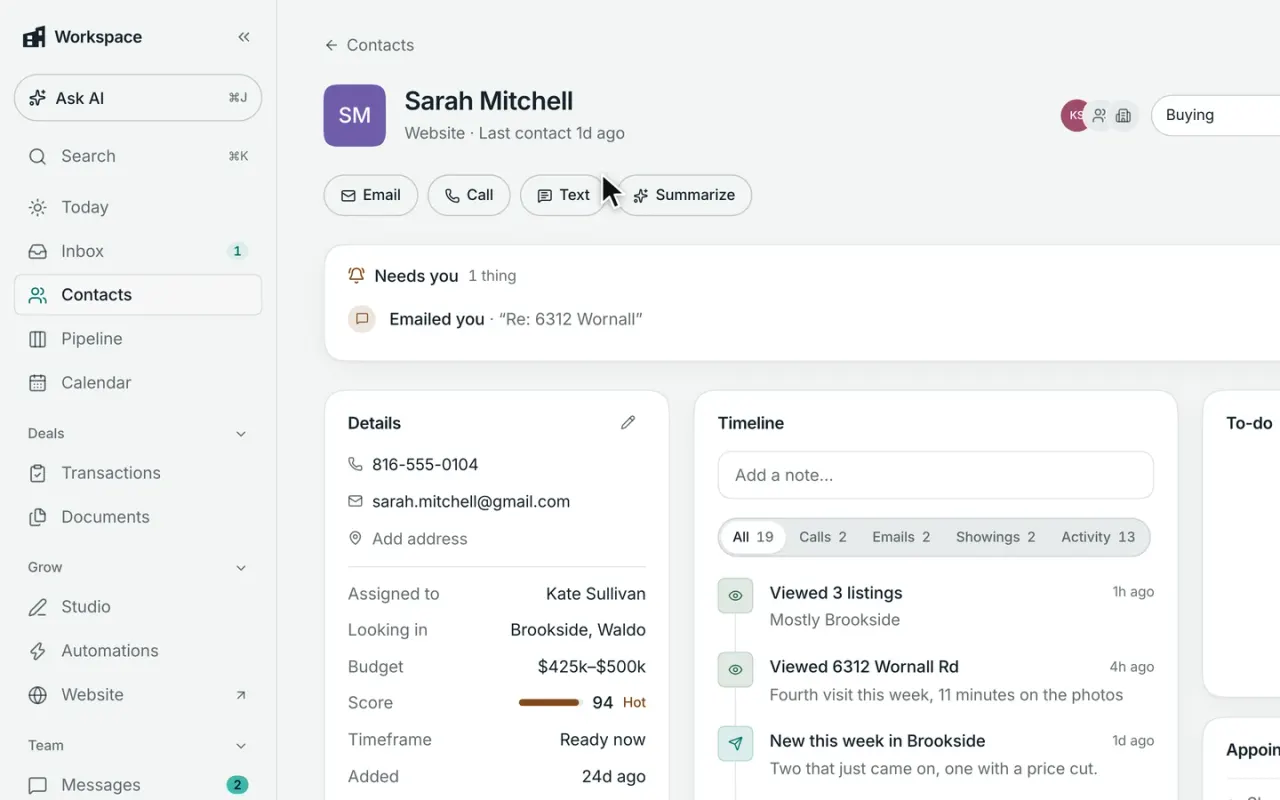
Ask what needs attention, what’s happening with a deal, who you should follow up with, or draft a message to a client. The assistant works from the contacts, conversations, deals, and calendar already in Workspace.

The Workspace AI assistant, contract review, and file analysis are included with Pro. Connections for your own AI tools are available on every plan.

Ask questions the way you’d ask a person.

Ask what needs attention, how your week looks, which leads need follow-up, or what’s happening with a deal. The assistant works from your contacts, tasks, calendar, pipeline, and transactions to give you answers grounded in Workspace.

You can also speak instead of type, attach a photo or file when you need help with something specific, or search the web when the answer lives outside your business data.

  • Summarize your day and surface what needs attention
  • Ask by voice or attach photos, PDFs, and CSV files
  • Search the web when the answer isn’t in Workspace

What you can ask Workspace

Ask about your day, your clients, your deals, or something you need created. Type it or say it naturally—the assistant works from the information already in Workspace.

Today“What needs attention?”Surface the leads, tasks, conversations, and deals that shouldn’t wait.
Today“Prep my day.”Get a quick rundown of your calendar, follow-ups, and priorities for the day ahead.
Today“How’s my week looking?”Review new leads, replies, appointments, deal activity, and other important changes from the week.
Contacts“Log a call with Lauren: she wants to counter at $705K.”Add the call and your note directly to Lauren’s contact history.
Drafts“Draft a text for Sarah.”Get a message written in your voice, ready for you to review and send.
Documents“What’s our referral fee policy?”Get an answer from your uploaded documents, with the source included so you can verify it.
Studio“Create a net sheet for the Vances.”Run the numbers and save the finished net sheet to their record, ready to review or share.
Studio“Help me write a video script.”Workspace asks what the video is about, then drafts the script with you.

It doesn’t just answer. It gets things done.

Ask Workspace to log a call, add a note, create or complete a task, schedule an appointment, find an open time, or build a showing tour. It can also update deals and milestones—all from the same conversation, without making you click through different parts of the CRM.

  • Log calls, notes, and tasks to the right contact
  • Schedule appointments, find open times, and build showing tours
  • Update deals, stages, milestones, and follow-up

Drafts that sound like you, ready when you are.

The assistant uses your past writing to help match your tone and style, whether you need a text to a buyer, an email to a seller, listing copy, or a social post. Client-facing messages start as drafts, so you can review, edit, and approve them before anything is sent.

  • Writes in a tone that reflects how you communicate
  • Client messages start as drafts for your review
  • Draft texts, emails, listing copy, and social posts

You stay in control

Workspace can answer questions and prepare work on its own, but actions that send something to a client, change your records, or alter how your business is set up require your approval first. You see exactly what it plans to do before anything changes.

If you ask it to…What happens
Send a messageWorkspace drafts the text or email and waits for you to review and send it.
Update a contact or dealIt shows you the proposed change before updating contact details, stages, milestones, or other important records.
Change an automationTurning automations on or off—or starting one for a client—requires your approval.
Take an action that affects someone elseSharing information, saving something for a client, or deleting an appointment is confirmed with you first.

The assistant works within your existing Workspace permissions, so it can only access the contacts, deals, documents, and other information you’re already allowed to see.

Upload the contract. Skip the re-entry.

Upload the purchase agreement and any addenda, and Workspace pulls out the key details—parties, price, contingencies, contract dates, and deadlines—and uses them to help build out the transaction. Relative deadlines are converted into real dates, including business-day calculations where needed.

Workspace can also review the file for missing documents, blank fields, conflicting information, and deadlines that may need attention, then give you a clear list to review.

  • Pull key dates and deal details from the contract
  • Keep dates you’ve already entered from being overwritten
  • Flag missing information and details that don’t match
  • Surface deadlines and open items that need attention

Turn your company documents into answers.

Upload brokerage policies, team playbooks, checklists, procedures, or other reference material and ask Workspace a question in plain English. The assistant finds the relevant information, answers from your documents, and shows you the source so you can verify it before relying on it.

  • Ask questions across your uploaded policies, playbooks, and files
  • See the source behind every answer
  • Use the same document knowledge from the assistant or team conversations
Included with Workspace Free

Use the AI tools you already work with.

Workspace can connect with AI tools that support MCP, giving them secure access to the contacts, tasks, calendar, deals, and other information you already keep in Workspace. Ask questions, create tasks, add notes, or schedule appointments from the AI tool you prefer instead of starting from scratch somewhere else.

  • Connect compatible AI tools securely
  • Work with your contacts, tasks, calendar, deals, and reports
  • Create notes, tasks, and appointments from your AI assistant
  • Included with Workspace Free
Connect your AI tools

Comparing your options?

See how Broker & Agent compares with other leading real estate platforms, with features, pricing, and key differences laid out side by side. Every price is sourced and dated. View all comparisons

Questions about the AI assistant

01

What can the Workspace AI assistant do?

It can answer questions about your business, surface what needs attention, and help get the work done. Ask about leads, clients, your calendar, pipeline, deals, or documents—or have it log a call, create a task, schedule an appointment, build a showing tour, update a deal, or draft follow-up in your voice.

Because it works with the information already in Workspace, its answers and actions are grounded in your actual business.

02

Will the assistant text or email my clients on its own?

No. Client-facing texts and emails are created as drafts for you to review, edit, and send.

The assistant also asks for approval before making meaningful changes in Workspace—like updating a contact, moving a deal to a new stage, changing milestones, or turning an automation on or off. You stay in control of what gets sent and what changes.

03

Does it write in my voice?

Yes. The assistant uses your past messages and the guidance you give it to help match your tone and writing style. Drafts can reflect how you normally communicate with clients rather than sounding like a generic template.

You can also give it useful context to remember—like a client’s communication preferences—so future drafts can take that into account.

04

Can Workspace pull key details from a real estate contract?

Yes. With Workspace Pro, upload a signed purchase agreement and Workspace can pull out key details like the parties, price, contingencies, contract date, and important deadlines. It can turn relative deadlines into actual dates, help populate the deal’s milestones, and flag missing or conflicting information for you to review.

Anything you’ve already entered stays in place, so the AI helps organize the transaction without silently overwriting your work.

05

Will it tell me when a deal needs attention?

Yes. Workspace Pro can surface transactions that need attention—like an overdue deadline, an incomplete checklist, or a closing that’s coming up with work still left to do.

It can also suggest the next tasks and prepare a client update for you to review and send.

06

Can I connect Claude or other AI tools to Workspace?

Yes. Workspace includes MCP access on every plan, so compatible AI tools like Claude can securely work with the contacts, tasks, calendar, deals, and reports already in your CRM. They can also add notes, create tasks, and schedule appointments.

Higher-risk actions—like messaging clients, deleting records, changing deal stages, or modifying account settings and billing—are intentionally kept out of the connection.

07

What can the assistant see?

The assistant works with the same permissions you do. It can use the contacts, deals, documents, tasks, and other Workspace information you already have access to—but nothing outside of that.

If your team keeps certain contacts or records private, they stay private from the assistant too. Outside AI tools only get access when you choose to connect them.

08

Which plans include the AI assistant?

The built-in Workspace AI assistant is included with Workspace Pro. Pro also adds contract review, document analysis, AI-assisted writing, and AI-powered automation steps.

On team plans, each Pro team member gets their own full Pro access, including the assistant.

Workspace Free does not include the built-in assistant, but it does include connections for compatible outside AI tools through MCP.


One Workspace for the workbehind every deal.

Workspace is opening soon. Join the early-access list to be among the first to get started.

Workspace is in open beta. Join free and bring your contacts with you.

Start free. Bring your contacts with you, and add Pro when you’re ready.